
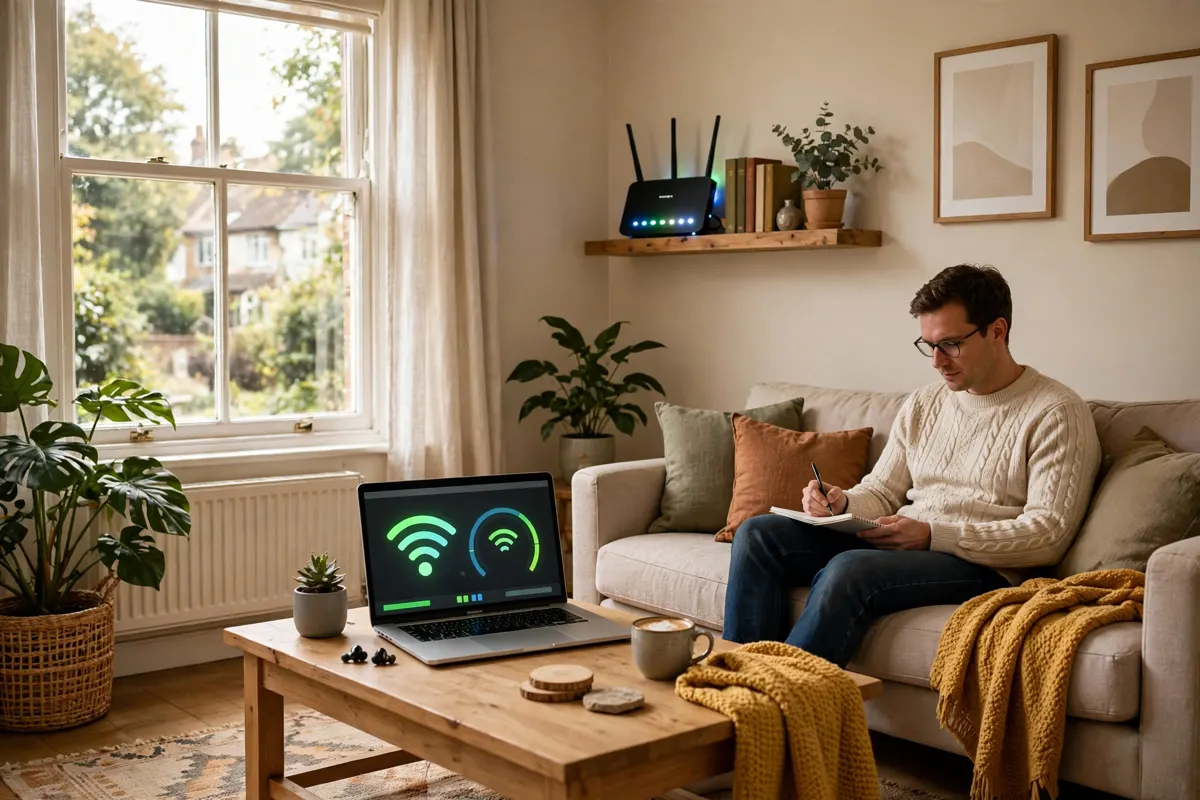
Learning how to speed up home wi-fi is one of those jobs that sounds technical and turns out to be mostly common sense. In most UK homes, the connection is fine. The router is just in the wrong place, on the wrong channel, or doing a job it was never designed for.
This guide works through the fixes in order of effort, starting with the ones that cost nothing and take five minutes. If the first few steps do not help, the later ones will tell you whether the problem is your router, your broadband package, or your house itself.
Start With a Speed Test You Can Trust
Before changing anything, measure what you actually get. Run a speed test with your phone standing next to the router, then again from the room where the connection feels worst. Write both numbers down, along with the speed your broadband package promises.
A big gap between the two readings points to a Wi-Fi problem inside your home. Similar low numbers in both places point to the broadband line itself, and no amount of router fiddling will fix that. Knowing which one it is saves hours of guessing.
Move the Router to the Centre of the Home
Routers work best in the middle of the house, out in the open, at about waist height. The worst spots are behind the television, inside a cabinet, or at the far end of the house next to the front door where the phone line happens to enter.
Thick walls, metal objects and water all weaken the signal. A router sitting next to a fish tank or behind a mirrored wardrobe is fighting a losing battle. Moving it even a metre away from large metal objects often lifts the signal in the next room. The same thinking applies to the room itself: if you work from the sofa with a laptop, a clear line of sight matters, and our sofa cushions guide has ideas for a comfortable working corner while you sort the signal.
Change the Channel and Split the Bands
Wi-Fi channels are shared with neighbours, and in a block of flats a crowded channel can halve your speed. Most modern routers can pick a clearer channel automatically, but the setting is often left on manual after installation. Log into the router settings and switch channel selection to automatic if it is not already.
Your router probably broadcasts two bands: 2.4 GHz and 5 GHz. The 5 GHz band is faster over short distances, while 2.4 GHz reaches further through walls. If your devices keep joining the wrong one, give the bands separate names in the settings so you can choose deliberately. Laptops near the router get 5 GHz, the smart bulbs at the far end of the house get 2.4 GHz, and everyone is happier.
Check What Is Actually Using the Bandwidth
Slow Wi-Fi is often busy Wi-Fi. A games console downloading a 100 GB update, a laptop backing up photos, or four people streaming video at once will flatten any connection. Most routers have a page showing which devices are connected and how much data each is using.
Look for the surprises. Smart cameras uploading constantly, a tablet left streaming in another room, or a phone backing up overnight can all take a large share. Scheduling big downloads for overnight, or pausing cloud backups during working hours, can transform a connection without spending a penny.
Update the Router and Secure It
Router firmware updates are easy to ignore and worth doing. Manufacturers use them to fix bugs, improve speed and close security holes, and the update usually takes a few minutes with a restart. Check for one in the router settings page at least every few months.
While you are there, make sure the network password is strong and the router admin password is not the factory default. An open or weakly protected network lets neighbours borrow your bandwidth, and that is the most annoying kind of slow Wi-Fi there is.
When an Upgrade Actually Helps
If your router is more than five years old, a new one is the most effective single purchase. Modern routers handle many more devices at once, which matters in a house full of phones, laptops, speakers and smart lights. Our home lighting ideas piece touches on smart lighting, and those bulbs and switches are exactly the kind of extra devices that stretch an old router.
For larger homes or thick-walled flats, a mesh system with two or three units beats one powerful router. Place the extra units halfway between the router and the dead zone, not inside it. Extenders that repeat a weak signal are a poorer substitute, and powerline adapters are worth considering only where running a cable is impossible.
Also check whether your broadband package matches your household. A home with several people working from home needs more than a basic fibre package, and the difference in monthly cost is often smaller than people expect. If you run a business from home, our guide on how to start a small business in London covers the practical setup, and reliable Wi-Fi is part of it. Check your home insurance too, since some policies cover home office equipment used for work.
A Real Example: The Flat With One Dead Room
A reader in a two-bedroom London flat had full speed in the living room and almost nothing in the second bedroom, where she worked from home. The router sat behind the television in a corner unit. She moved it to a shelf near the hallway, switched the laptop to the 5 GHz band, and discovered a neighbour’s network had been sitting on the same channel for years.
Total cost: nothing. The bedroom went from 8 Mbps to 65 Mbps, and the only thing she bought was a longer ethernet cable for the television. Most Wi-Fi problems look like that in the end: the house and the router were never introduced properly.
A Faster Connection Starts With the Free Fixes
Run the speed tests, move the router into the open, let it choose a clear channel, and check which devices are eating the bandwidth. Those four steps solve most slow connections in UK homes. If they do not, a modern router or a small mesh system is the sensible next spend, matched to the size of your home rather than the size of the box.
And keep an eye on the rest of the home while you are at it. A tidy desk, a comfortable chair and a room that feels good to sit in all make the working day easier, and our home decor ideas guide is a good place to start once the connection is sorted.